Retail SMS templates give marketers a starting structure for sales, launches, loyalty, service, and reactivation messages. They are not ready to send until you replace every variable, confirm the audience and offer, test the destination, and add the disclosures required for your program.
The 24 templates below cover online stores, physical locations, and mixed retail operations. Each group explains when to use the copy and which operational check should happen before launch.
How to Customize These Retail SMS Templates
Replace every bracketed field before scheduling a message:
[Brand] identifies the sender. [First Name] is optional and needs a fallback. [Product], [Category], or [Reward] states the reason for the message. [Store], [Date], [Time], and [Time Zone] prevent location or deadline confusion. [Link] should open the exact mobile page. [Opt-Out] should use the language required by your program and market.
Keep one action in each message. A customer should know whether to shop, reserve, reply, visit, confirm, or update a preference. Use this retail SMS marketing guide when you need to plan the audience and campaign around the template.

Welcome and List-Growth Templates
Use welcome messages to confirm the program and deliver the value stated at sign-up. A keyword response should describe what comes next rather than treating one requested coupon as unlimited permission.
1. Promised Welcome Incentive
[Brand]: Welcome to SMS. Use [Code] for [Offer] through [Date]: [Link]. [Terms Summary]. [Opt-Out]
Send this immediately after a valid promotional opt-in. Confirm that the code is active and that the landing page reflects the same minimum order and exclusions.
2. Preference Capture
[Brand]: What would you like by text? Reply 1 for new arrivals, 2 for store events, or 3 for member offers. [Opt-Out]
Use this when your platform can store and honor replies. Do not collect preferences that your segmentation system cannot apply.
3. In-Store Keyword Sign-Up
[Brand]: Thanks for texting [Keyword]. Show this message at [Store] for [Offer] through [Date]. [Redemption Limit]. [Opt-Out]
Place the full sign-up disclosure on the store sign or other call to action. Give cashiers the offer rule and manual fallback before promoting the keyword.

Sale and Limited-Time Offer Templates
Retail sale messages need a defined audience, deadline, and stock plan. Check local sending hours and time zones before using urgency.
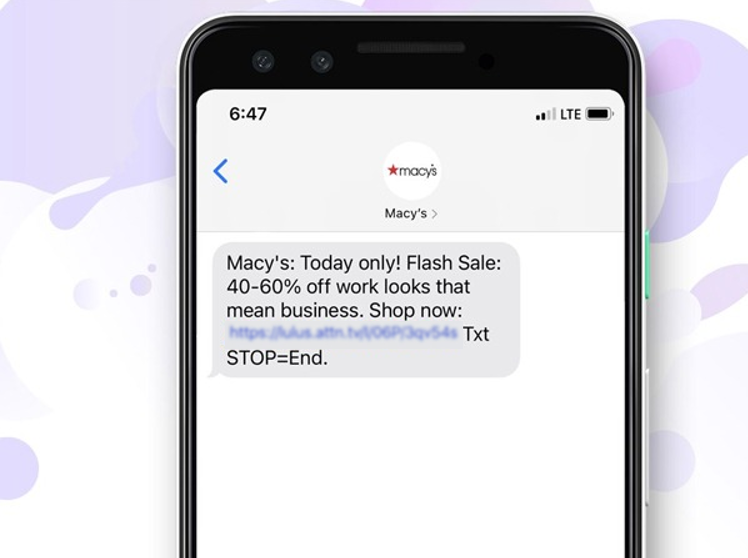
4. Online Flash Sale
[Brand]: [Category] is [Discount] off until [Time] [Time Zone]. Shop: [Link]. [Terms Summary]. [Opt-Out]
Link to the eligible collection, not the home page. Stop or update the campaign when stock or the offer changes.
5. In-Store Promotion
[Brand]: Visit [Store] on [Date] for [Offer]. Show this text at checkout. Hours: [Hours]. [Terms Summary]. [Opt-Out]
Include the location when a brand has several stores. Test the POS code and make the rule visible to every shift.
6. Category-Specific Offer
[Brand]: Your saved [Category] picks are [Discount] off through [Date]. Shop the collection: [Link]. [Opt-Out]
Use browsing, purchase, or stated-preference data. Exclude customers who bought from the category after the audience was built.
New Arrival and Product Drop Templates
New-arrival messages can create interest without a discount. Relevance comes from preference and timing, not from writing “selling fast” without evidence.
7. General New Arrival
[Brand]: New [Category] has arrived. See the latest colors and sizes: [Link]. [Opt-Out]
Use this for a segment that has shown interest in the category. The destination should list available products on mobile.
8. Waitlist Early Access
[Brand]: [First Name], waitlist access for [Product] is open through [Time]. Shop your selected [Variant]: [Link]. [Opt-Out]
Send only to the waitlist or alert group. Confirm that the selected variant is still available before each batch.
9. Local-Store Availability
[Brand]: [Product] is now available at [Store]. Reserve by [Time] for pickup: [Link]. [Opt-Out]
Connect the message to local inventory. A reservation link is better than a general product page when store quantities are limited.
Browse and Cart Recovery Templates
Browse and cart messages are normally automated after a customer event. Cancel them after purchase, session expiry, stock loss, or an opt-out.
10. Browse Reminder Without a Discount
[Brand]: Still considering [Product]? Review details and availability here: [Link]. Questions? Reply to this text. [Opt-Out]
Start with help, not a coupon. Some customers need sizing, shipping, or compatibility information rather than a lower price.
11. Saved-Cart Reminder
[Brand]: Your cart is saved for now: [Link]. Complete checkout before [Time] to keep the current availability. [Opt-Out]
Do not claim that stock is reserved unless the commerce system actually reserves it. Remove expired products from the cart destination.
12. Cart Offer With a Threshold
[Brand]: Complete your [Value]+ order by [Date] and use [Code] for [Offer]: [Link]. [Terms Summary]. [Opt-Out]
Use an offer only when the economics support it. Suppress recent purchasers so the message does not arrive after checkout.
Back-in-Stock and Low-Stock Templates
Availability messages need current inventory. Do not manufacture scarcity or continue sending after the product sells out.
13. Requested Back-in-Stock Alert
[Brand]: [Product] is back in [Variant]. Order here: [Link]. Availability may change. [Opt-Out]
Send this to customers who requested the alert. The direct product link should preserve the selected size, color, or model when possible.
14. Store Restock Notice
[Brand]: [Product] is back at [Store]. Reserve for pickup by [Time]: [Link]. [Opt-Out]
Check store inventory and reservation capacity. Route replies to staff who can confirm availability.
15. Verified Low-Stock Notice
[Brand]: Only [Quantity] units of [Product] remain at [Store] as of [Time]. Check availability: [Link]. [Opt-Out]
Use a quantity only when the inventory feed is reliable and timestamped. A generic “almost gone” claim may weaken trust and create complaints.
Loyalty and VIP Templates
Loyalty texts should make the program easier to use. Accurate balances and expiration dates are more valuable than repeated member-only language.
16. Points or Balance Update
[Brand] Rewards: You have [Points] points. Your next reward starts at [Threshold]. View your account: [Link]. [Opt-Out]
Sync the balance close to send time. Explain whether returns or pending orders can change the total on the account page.
17. Reward Unlocked
[Brand] Rewards: You unlocked [Reward]. Use it through [Date] in-store or online: [Link]. [Terms Summary]. [Opt-Out]
Confirm that online and store systems recognize the same reward. Measure valid uses rather than message clicks.
18. VIP Early Access
[Brand]: VIP access to [Event or Product] starts now and ends [Date/Time]. Enter here: [Link]. [Opt-Out]
Do not send the public campaign to the same group during the access window. The early experience should feel meaningfully different.
Pickup, Returns, and Service Templates
Service messages support an existing transaction. Adding a promotion can change the message purpose and the permission required, so keep operational copy focused.
19. Pickup Ready
[Brand]: Order [Order ID] is ready at [Store]. Pick up by [Date] during [Hours]. Bring [Required Item]. Help: [Support].
Use the correct store and order status. Cancel reminders after pickup, refund, transfer, or cancellation.
20. Return-Window Reminder
[Brand]: The return window for order [Order ID] closes on [Date]. Review options and store locations: [Link].
Send only when the policy and order data support the date. Keep a helpful deadline separate from any sales promotion.
21. Repair or Service Completion
[Brand]: Your [Item] service is complete and ready at [Store]. Collection hours: [Hours]. Questions? Reply or call [Number].
Confirm status before sending. Route replies to the store or service desk that holds the item.
Store Event and Reactivation Templates
Events and win-back campaigns are scheduled sends, but they need different segments. An event invitation targets relevant location or interest data. Reactivation starts from a defined inactivity period.
22. Store Opening or Event
[Brand]: Join us at [Store] on [Date], [Time] for [Event]. Reserve a place: [Link]. [Event Terms]. [Opt-Out]
Use capacity controls when space is limited. Stop confirmations after the event reaches capacity.
23. Inactive-Customer Offer
[Brand]: It has been [Period] since your last order. Use [Code] for [Offer] through [Date]: [Link]. [Opt-Out]
Set the inactivity window before building the audience. Exclude customers who purchase after list creation and measure net revenue after discount cost.
24. Preference Reset
[Brand]: Want different retail texts? Choose new arrivals, store events, member offers, or fewer messages here: [Link]. [Opt-Out]
Use this when engagement falls or the program expands. A smaller list with current preferences is more useful than a large list that ignores every send.
Build a Balanced Retail SMS Calendar
A template library can create over-sending when every team sees another reason to text. Keep campaigns and automations on one calendar so a flash sale does not collide with a cart reminder, loyalty update, and store event.
Use three message lanes:
- Campaign Messages: Schedule launches, sales, events, and broad loyalty announcements for defined segments.
- Behavioral Messages: Send browse, cart, replenishment, and back-in-stock messages after a relevant customer event.
- Service Messages: Send pickup, return, order, repair, and support updates under the rules for operational communication.
Coordinate suppression across all lanes. A customer who just purchased should not receive a cart offer. A customer with an unresolved complaint may need support before promotion. A person who opted out should not remain in another team’s list.
Before every send, confirm the audience, inventory, offer terms, store hours, landing page, sender identity, personalization fallback, time zone, message segments, reply owner, and opt-out processing. In the United States, CTIA’s Messaging Principles and Best Practices recommend that non-consumer senders obtain consent before texting consumers and provide a clear way to opt out.
Good templates also need good editing. Use this guide to write a good marketing SMS when adapting the hook, offer, and CTA to your brand.
Frequently Asked Questions
How long should a retail SMS template be?
Use the shortest message that clearly identifies the brand, offer or update, action, terms summary, and required opt-out language. Test encoding and segments; one Unicode character can change the segment calculation.
Should retail SMS templates use emojis?
Use emojis only when they fit the brand and survive device testing. They may use Unicode encoding and increase message segments, so check rendering and cost before launch.
Use Templates in Tested Campaigns
Choose one retail moment, customize every variable, and test the full customer journey before scaling. SMSBoosting’s Marketing SMS service supports scheduled and API-based sending, subject to destination, sender, and program requirements.